#  foot
The fast, lightweight and minimalistic Wayland terminal emulator.
## Index
1. [Features](#features)
1. [Configuration](#configuration)
1. [Troubleshooting](#troubleshooting)
1. [Why the name 'foot'?](#why-the-name-foot)
1. [Fonts](#fonts)
1. [Shortcuts](#shortcuts)
1. [Keyboard](#keyboard)
1. [Normal mode](#normal-mode)
1. [Scrollback search](#scrollback-search)
1. [Mouse](#mouse)
1. [Server (daemon) mode](#server-daemon-mode)
1. [Alt/meta](#alt-meta)
1. [Backspace](#backspace)
1. [DPI and font size](#dpi-and-font-size)
1. [Supported OSCs](#supported-oscs)
1. [Programmatically checking if running in foot](#programmatically-checking-if-running-in-foot)
1. [Requirements](#requirements)
1. [Running](#running)
1. [Building](#building)
1. [Installing](#installing)
1. [Arch Linux](#arch-linux)
1. [Other](#other)
1. [Setup](#setup)
1. [Release build](#release-build)
1. [Profile Guided Optimization](#profile-guided-optimization)
1. [Debug build](#debug-build)
1. [Running the new build](#running-the-new-build)
1. [Credits](#Credits)
1. [Bugs](#bugs)
1. [Mastodon](#mastodon)
## Features
* Fast (see [benchmarks](doc/benchmark.md))
* Lightweight, in dependencies, on-disk and in-memory
* Wayland native
* DE agnostic
* User configurable font fallback
* On-the-fly font resize
* On-the-fly DPI font size adjustment
* Scrollback search
* Color emoji support
* Server/daemon mode (one master process, many windows)
* Multi-seat
* [Synchronized Updates](https://gitlab.freedesktop.org/terminal-wg/specifications/-/merge_requests/2) support
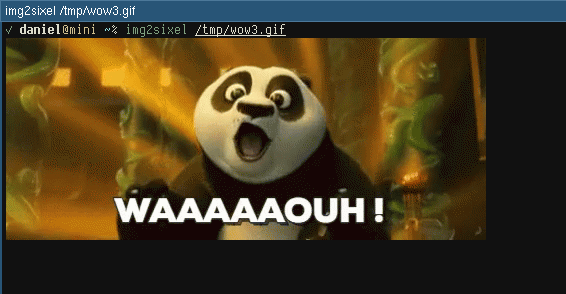
* [Sixel image support](https://en.wikipedia.org/wiki/Sixel)
## Configuration
**foot** can be configured by creating a file `$XDG_CONFIG_HOME/footrc` (defaulting to `~/.config/footrc`).
A template for that can usually be found in `/usr/share/foot/footrc` or
[here](https://codeberg.org/dnkl/foot/src/branch/master/footrc).
Further information can be found in foot's manpage `foot(5)`.
## Troubleshooting
See the [wiki](https://codeberg.org/dnkl/foot/wiki#user-content-troubleshooting)
## Why the name 'foot'?
I'm bad at names. Most of my projects usually start out as _foo
something_ (for example, [yambar](https://codeberg.org/dnkl/yambar)
was _f00bar_ for a while).
So why _foot_?
_foo terminal_ → _footerm_ → _foot_
Pretty bad, I know.
As a side note, if you pronounce the _foo_ part of _foot_ the same way
you pronounce _foobar_, then _foot_ sounds a lot like the Swedish word
_fot_, which incidentally means (you guessed it) _foot_.
## Fonts
**foot** supports all fonts that can be loaded by _freetype_,
including **bitmap** fonts and **color emoji** fonts.
Foot uses _fontconfig_ to locate and configure the font(s) to
use. Since fontconfig's fallback mechanism is imperfect, especially
for monospace fonts (it doesn't prefer monospace fonts even though the
requested font is one), foot allows you, the user, to configure the
fallback fonts to use.
This also means you can configure _each_ fallback font individually;
you want _that_ fallback font to use _this_ size, and you want that
_other_ fallback font to be _italic_? No problem!
If a glyph cannot be found in _any_ of the user configured fallback
fonts, _then_ fontconfig's list is used.
## Shortcuts
These are the default shortcuts. See `man 5 foot` and the example
`footrc` to see how these can be changed.
### Keyboard
#### Normal mode
shift+page up/page down
: Scroll up/down in history
ctrl+shift+c
: Copy selected text to the _clipboard_
ctrl+shift+v
: Paste from _clipboard_
ctrl+shift+r
: Start a scrollback search
ctrl++, ctrl+=
: Increase font size by 0,5pt
ctrl+-
: Decrease font size by 0,5pt
ctrl+0
: Reset font size
ctrl+shift+n
: Spawn a new terminal. If the shell has been configured to emit the
OSC 7 escape sequence, the new terminal will start in the current
working directory.
#### Scrollback search
ctrl+r
: Search _backward_ for next match
ctrl+s
: Search _forward_ for next match
ctrl+w
: Extend current selection (and thus the search criteria) to the end
of the word, or the next word if currently at a word separating
character.
ctrl+shift+w
: Same as ctrl+w, except that the only word
separating characters are whitespace characters.
escape, ctrl+g
: Cancel the search
return
: Finish the search and copy the current match to the primary
selection
### Mouse
left - **single-click**
: Drag to select; when released, the selected text is copied to the
_primary_ selection. This feature is **disabled** when client has
enabled _mouse tracking_.
: Holding shift enables selection in mouse tracking enabled
clients.
: Holding ctrl will create a block selection.
left - **double-click**
: Selects the _word_ (separated by spaces, period, comma, parenthesis
etc) under the pointer. Hold ctrl to select everything
under the pointer up to, and until, the next space characters.
left - **triple-click**
: Selects the entire row
middle
: Paste from _primary_ selection
right
: Extend current selection
wheel
: Scroll up/down in history
## Server (daemon) mode
When run normally, **foot** is a single-window application; if you
want another window, start another foot process.
However, foot can also be run in a _server_ mode. In this mode, one
process hosts multiple windows. Note that this is **nothing** like
tabs. When first started in server mode, **no** windows are available.
You open new windows by running `footclient`. This is a small process
that instructs the foot server to open a new terminal window. The
client process remains running until the terminal window is
closed. The exit value of the client process is that of the shell that
was running in the terminal window.
The point of this mode is **a)** reduced memory footprint - all
terminal windows will share fonts and glyph cache, and **b)** reduced
startup time - loading fonts and populating the glyph cache takes
time, but in server mode it only happens once.
The downside is a performance penalty; all windows' input and output
are multiplexed in the same thread (but each window will have its own
set of rendering threads). This means that if one window is very busy
with, for example, producing output, then other windows will suffer.
And of course, should the server process crash, **all** windows will
be gone.
Typical usage would be to start the server process (`foot --server`)
when starting your Wayland compositor (i.e. logging in to your
desktop), and then run `footclient` instead of `foot` whenever you
want to launch a new terminal.
## Alt/meta
By default, foot prefixes _Meta characters_ with ESC. This corresponds
to XTerm's `metaSendsEscape` option set to `true`.
This can be disabled programmatically with `\E[?1036l` (and enabled
again with `\E[?1036h`).
When disabled, foot will instead set the 8:th bit of meta character
and then UTF-8 encode it. This corresponds to XTerm's `eightBitMeta`
option set to `true`.
This can also be disabled programmatically with `rmm` (_reset meta
mode_, `\E[?1034l`), and enabled again with `smm` (_set meta mode_,
`\E[?1034h`).
## Backspace
Foot transmits DEL (`^?`) on backspace. This corresponds to
XTerm's `backarrowKey` option set to `false`, and to DECBKM being
_reset_.
To instead transmit BS (`^H`), press
ctrl+backspace.
Note that foot does **not** implement DECBKM, and that the behavior
described above **cannot** be changed.
Finally, pressing alt will prefix the transmitted byte with
ESC.
## DPI and font size
Font sizes are apparently a complex thing. Many applications use a
fixed DPI of 96. They may also multiply it with the monitor's scale
factor.
This results in fonts with different **physical** sizes (i.e. if
measured by a ruler) when rendered on screens with different DPI
values. Even if the configured font size is the same.
This is not how it is meant to be. Fonts are measured in _point sizes_
**for a reason**; a given point size should have the same height on
all mediums, be it printers or monitors, regardless of their DPI.
Foot will always use the monitor's physical DPI value. Scale factors
are irrelevant (well, they affect e.g. padding, but not the font
size). This means the glyphs rendered by foot should always have the
same physical height, regardless of monitor.
Foot will re-size the fonts on-the-fly when the window is moved
between screens with different DPIs values. If the window covers
multiple screens, with different DPIs, the highest DPI will be used.
_Tip_: QT applications can be configured to work this way too, by
exporting the environment variable `QT_WAYLAND_FORCE_DPI=physical`.
_Note_: if you configure **pixelsize**, rather than **size**, then DPI
changes will **not** change the font size. Pixels are always pixels.
## Supported OSCs
OSC, _Operating System Command_, are escape sequences that interacts
with the terminal emulator itself. Foot implements the following OSCs:
* `OSC 0` - change window icon + title (but only title is actually
supported)
* `OSC 2` - change window title
* `OSC 4` - change color palette
* `OSC 7` - report CWD
* `OSC 10` - change (default) foreground color
* `OSC 11` - change (default) background color
* `OSC 12` - change cursor color
* `OSC 52` - copy/paste clipboard data
* `OSC 104` - reset color palette
* `OSC 110` - reset default foreground color
* `OSC 111` - reset default background color
* `OSC 112` - reset cursor color
* `OSC 555` - flash screen (**foot specific**)
## Programmatically checking if running in foot
Foot does **not** set any environment variables that can be used to
identify foot (reading `TERM` is not reliable since the user may have
chosen to use a different terminfo).
You can instead use the escape sequences to read the _Secondary_ and
_Tertiary Device Attributes_ (secondary/tertiary DA, for short).
The tertiary DA response is always `\EP!|464f4f54\E\\`. The `\EP!|` is
the standard tertiary DA response prefix, `DCS ! |`. The trailing
`\E\\` is of course the standard string terminator, `ST`.
In the response above, the interresting part is `464f4f54`; this is
the string _FOOT_ in hex.
The secondary DA response is `\E[>1;XXYYZZ;0c`, where XXYYZZ is foot's
major, minor and patch version numbers, in decimal, using two digits
for each number. For example, foot-1.4.2 would respond with
`\E[>1;010402;0c`.
**Note**: not all terminal emulators implement tertiary DA. Most
implement secondary DA, but not all. All _should_ however implement
_Primary DA_.
Thus, a safe way to query the terminal is to request the tertiary,
secondary and primary DA all at once, in that order. All terminals
should ignore escape sequences they do not recognize. You will have to
parse the response (which in foot will consist of all three DA
responses, all at once) to determine which requests the terminal
emulator actually responded to.
## Requirements
### Running
* fontconfig
* freetype
* pixman
* wayland (_client_ and _cursor_ libraries)
* xkbcommon
* [tllist](https://codeberg.org/dnkl/tllist) [^1]
* [fcft](https://codeberg.org/dnkl/fcft) [^1]
[^1]: can also be built as subprojects, in which case they are
statically linked.
### Building
In addition to the dev variant of the packages above, you need:
* meson
* ninja
* wayland protocols
* ncurses
* scdoc
A note on compilers; in general, foot runs **much** faster when
compiled with gcc instead of clang. A profile-guided gcc build can be
more than twice as fast as a clang build.
**Note** GCC 10.1 has a performance regression that severely affects
foot when doing PGO builds and building with `-O2`; it is about 30-40%
slower compared to GCC 9.3.
The work around is simple: make sure you build with `-O3`. This is the
default with `meson --buildtype=release`, but e.g. `makepkg` can
override it (`makepkg` uses `-O2` by default).
## Installing
foot makes use of a couple of libraries I have developed:
[tllist](https://codeberg.org/dnkl/tllist) and
[fcft](https://codeberg.org/dnkl/fcft). As such, they will most likely
not have been installed already. You can either install them as system
libraries, or you can build them as _subprojects_ in foot.
When building foot, they will first be searched for as system
libraries. If **found**, foot will link dynamically against them.
If **not** found, they will be searched for as subprojects. In this
case you need to create the `subprojects` directory and clone
https://codeberg.org/dnkl/fcft.git and
https://codeberg.org/dnkl/tllist.git (see [Other](#other) below).
### Arch Linux
Install from AUR:
* [foot](https://aur.archlinux.org/packages/foot/) +
[foot-terminfo](https://aur.archlinux.org/packages/foot-terminfo/)
* [foot-git](https://aur.archlinux.org/packages/foot-git/) +
[foot-terminfo-git](https://aur.archlinux.org/packages/foot-terminfo-git/)
Or use [makepkg](https://wiki.archlinux.org/index.php/Makepkg) to
build the bundled [PKGBUILD](PKGBUILD) (run `makepkg` in the source
root directory).
Unlike the AUR packages, the bundled PKGBUILD **requires**
[tllist](https://codeberg.org/dnkl/tllist) and
[fcft](https://codeberg.org/dnkl/fcft) to be installed as system
libraries. If you do not want this, please edit the PKGBUILD file, or
install manually (see [Other](#other) below).
Note that it will do a profiling-guided build, and that this requires
a running wayland session since it needs to run an intermediate build
of foot.
### Other
Foot uses _meson_. If you are unfamiliar with it, the official
[tutorial](https://mesonbuild.com/Tutorial.html) might be a good
starting point.
I also recommend taking a look at the bundled Arch
[PKGBUILD](PKGBUILD) file, to see how it builds foot. Especially so if
you intend to install a release build of foot, in which case you might
be interested in the compiler flags used there.
#### Setup
If you have not installed [tllist](https://codeberg.org/dnkl/tllist)
and [fcft](https://codeberg.org/dnkl/fcft) as system libraries, clone
them into the `subprojects` directory:
```sh
mkdir -p subprojects
pushd subprojects
git clone https://codeberg.org/dnkl/tllist.git
git clone https://codeberg.org/dnkl/fcft.git
popd
```
To build, first, create a build directory, and switch to it:
```sh
mkdir -p bld/release && cd bld/release
```
#### Release build
```sh
export CFLAGS+="-O3 -march=native -fno-plt"
meson --buildtype=release --prefix=/usr -Db_lto=true
```
For performance reasons, I strongly recommend doing a
[PGO](#profile-guided-optimization) (Profile Guided Optimization)
build. This requires a running Wayland session since we will be
executing an intermediate build of foot.
If you do not want this, just build:
```sh
ninja
```
and then skip to [Running the new build](#running-the-new-build).
**For packagers**: normally, you would configure compiler flags using
`-Dc_args`. This however "overwrites" `CFLAGS`. `makepkg` from Arch,
for example, uses `CFLAGS` to specify the default set of flags.
Thus, we do `export CFLAGS+="..."` to at least not throw away those
flags.
When packaging, you may want to use the default `CFLAGS` only, but
note this: foot is a performance critical application that relies on
compiler optimizations to perform well.
In particular, with GCC 10.1, it is **very** important `-O3` is used
(and not e.g. `-O2`) when doing a [PGO](#profile-guided-optimization)
build.
##### Profile Guided Optimization
First, make sure you have configured a [release](#release-build) build
directory, but:
If using Clang, make sure to add `-Wno-ignored-optimization-argument
-Wno-profile-instr-out-of-date` to `CFLAGS`.
If using GCC, make sure to add `-Wno-missing-profile` to `CFLAGS`.
Then, tell meson we want to _generate_ profile data, and build:
```sh
meson configure -Db_pgo=generate
ninja
```
Next, we need to execute the intermediate build of foot, and run a
payload inside it that will exercise the performance critical code
paths. To do this, we will use the script
`scripts/generate-alt-random-writes.py`:
```sh
foot_tmp_file=$(mktemp)
./foot --config=/dev/null --term=xterm sh -c " --scroll --scroll-region --colors-regular --colors-bright --colors-rgb ${foot_tmp_file} && cat ${foot_tmp_file}"
rm ${foot_tmp_file}
```
You should see a foot window open up, with random colored text. The
window should close after ~1-2s.
If using Clang, now do (this requires _llvm_ to have been installed):
```sh
llvm-profdata merge default_*profraw --output=default.profdata
```
Next, tell meson to _use_ the profile data we just generated, and rebuild:
```sh
meson configure -Db_pgo=use
ninja
```
Continue reading in [Running the new build](#running-the-new-build)
#### Debug build
```sh
meson --buildtype=debug ../..
ninja
```
#### Running the new build
You can now run it directly from the build directory:
```sh
./foot
```
But note that it will default to `TERM=foot`, and that this terminfo
has not been installed yet. However, most things should work with the
`xterm-256color` terminfo:
```sh
./foot --term xterm-256color
```
But, I **recommend** you install the `foot` and `foot-direct` terminfo
files. You can either copy them manually (typically to
`/usr/share/terminfo/f` - but this is dependens on the distro), or
just install everything:
```sh
ninja install
```
# Credits
* [Ordoviz](https://codeberg.org/Ordoviz), for designing and
contributing foot's [logo](icons/hicolor/48x48/apps/foot.png).
# BUGS
Please report bugs to https://codeberg.org/dnkl/foot/issues
The report should contain the following:
* Which Wayland compositor (and version) you are running
* Foot version (`foot --version`)
* Log output from foot (start foot from another terminal)
* If reporting a crash, please try to provide a `bt full` backtrace
**with symbols** (i.e. use a debug build)
* Steps to reproduce. The more details the better
# Mastodon
Every now and then I post foot related updates on
[@dnkl@linuxrocks.online](https://linuxrocks.online/@dnkl)